
The videos that stand out and drive engagement are usually the ones that feel dynamic, polished, and easy to follow.
From social clips and webinars to executive updates and snackable content, on-screen text helps capture attention, reinforce key messages, and keep viewers engaged while scrolling.
That’s why Socialive now includes Custom Text Overlays directly inside the Editor.
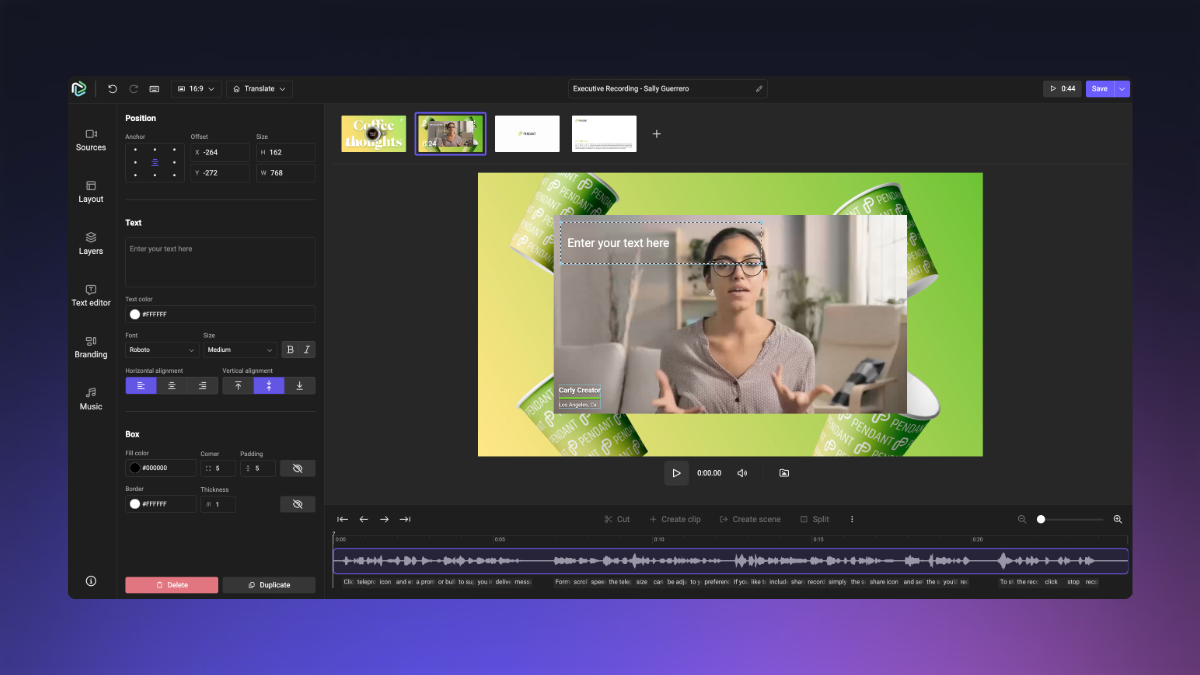
With Text Overlays, creators can add and customize on-screen text elements without relying on external design tools or complicated editing workflows. Whether you’re adding agendas, speaker names, key statistics, disclaimers, announcements, or calls to action, you can now build polished visual elements directly within Socialive.
The result? Faster production workflows and more engaging, professional-looking content.
Why text overlays matter
Most viewers decide within seconds whether they’ll continue watching a video.
Text overlays help immediately communicate context and guide attention — especially in social feeds where people are scrolling quickly or watching with sound low or muted.
Simple overlays can help:
- Make videos feel more polished and branded
- Reinforce key messaging
- Improve viewer retention
- Highlight important moments
- Increase accessibility
- Create more visually engaging content
Even small visual enhancements can make contributor-created content feel significantly more professional.
What you can create with text overlays
Text Overlays make it easy to build visual elements directly inside your production workflow.
Popular use cases include:
- Speaker lower-thirds
- Episode titles
- Live agendas
- Statistics and data highlights
- Compliance disclaimers
- Quotes and soundbites
- Call-to-action messaging
- Event announcements
- Section headers
- Session summaries
- Breaking news or market updates
Because overlays can be edited directly inside Socialive, teams can quickly update messaging without recreating graphics in external design tools.
How to add text overlays
1. Open the layers tab and select overlay
Start by opening the Layers tab inside the Socialive Editor and choose the Overlay option to begin adding a new visual element.

2. Choose text
Select Text to create a custom text overlay directly inside your project.

3. Customize your overlay
Once added, text boxes can be fully customized within the platform.
Customization options include:
- Drag-and-drop placement
- Text resizing
- Bold formatting
- Center alignment
- Fill colors
- Borders with adjustable thickness
- Rounded corners for a polished appearance
Creative ways to use text overlays
Not sure where to start? Here are a few ideas teams are already using:
Create scroll-stopping headlines
Use bold opening text to immediately tell viewers why the content matters.
Examples:
- “3 investing trends to watch”
- “What every advisor should know”
- “Big product announcement”
- “Key takeaways from EDGE”
Highlight important quotes
Pull out impactful one-liners or soundbites to reinforce key moments.
This works especially well for:
- Executive thought leadership
- Customer testimonials
- Fireside chats
- Webinar clips
Add branded section titles
Break longer videos into digestible sections using title overlays.
Examples:
- “Market outlook”
- “What changed”
- “What’s next”
- “Customer spotlight”
Reinforce calls to action
Use overlays near the end of videos to encourage the next step.
Examples:
- “Register now”
- “Learn more”
- “Download the report”
- “Follow for more insights”
Best practices for better overlays
1. Keep text concise: Short phrases are easier to read quickly, especially on mobile devices.
2. Prioritize readability: Use high-contrast colors and large enough text sizes so overlays remain easy to read across screens.
3. Avoid overcrowding: Too much text can distract from the speaker and reduce engagement.
4. Keep styling consistent: Using consistent colors, fonts, and placement helps content feel more branded and professional.
5. Time overlays intentionally: Bring overlays in when they reinforce what’s being said rather than competing with the speaker.
Now teams can create and adjust overlays directly inside Socialive, making workflows faster, more flexible, and easier to scale.
Whether you’re producing social clips, executive communications, webinars, or advisor videos, Text Overlays help transform simple recordings into more engaging, branded, and professional content.